
Make your AI Migos video now
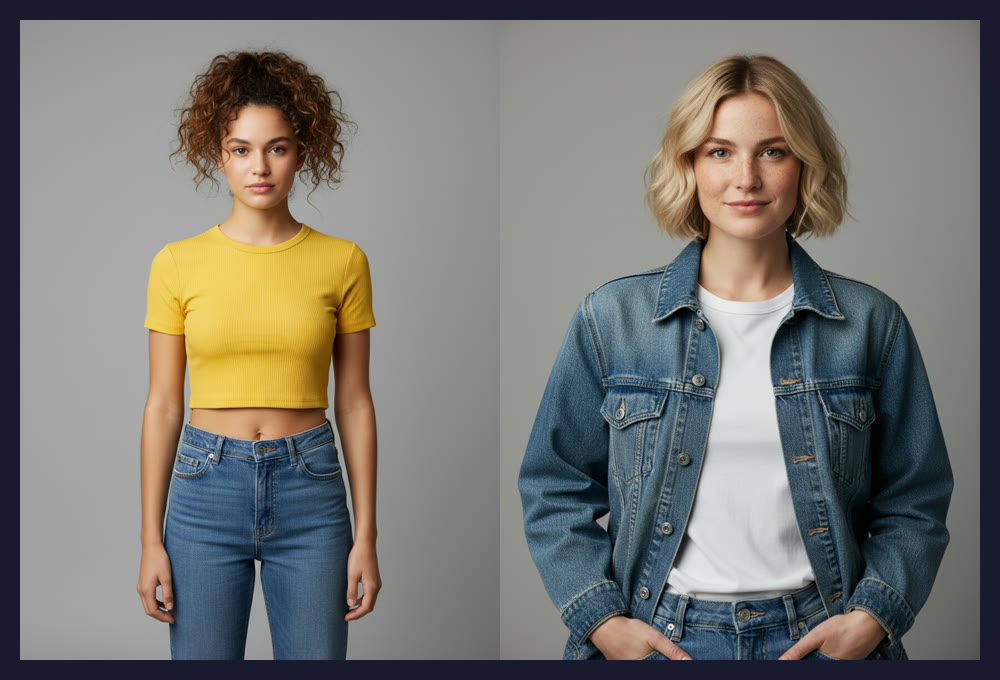
One person per photo, front-facing, well lit. The first photo takes the left spot, the second the right.
Failed renders are never charged.
Download it and post it anywhere.
What you need to make an AI Migos video
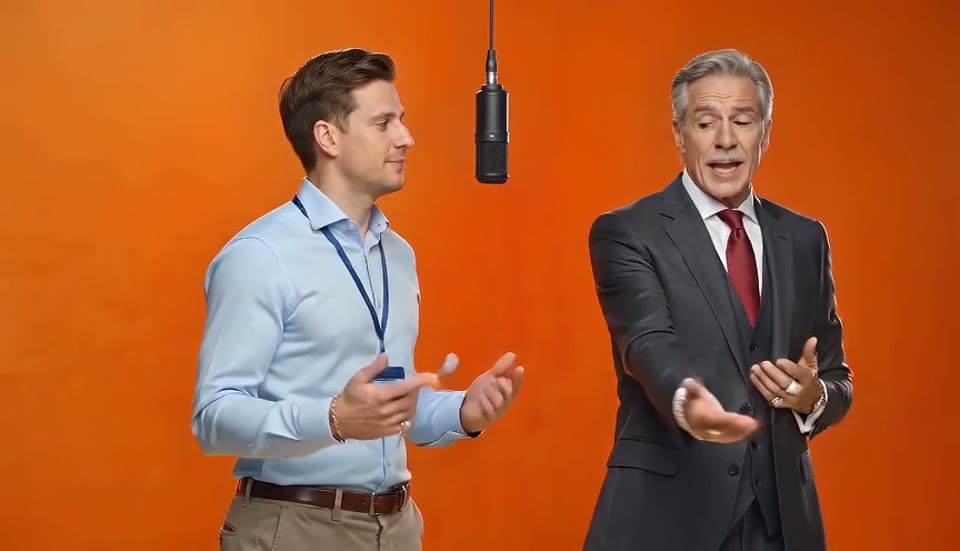
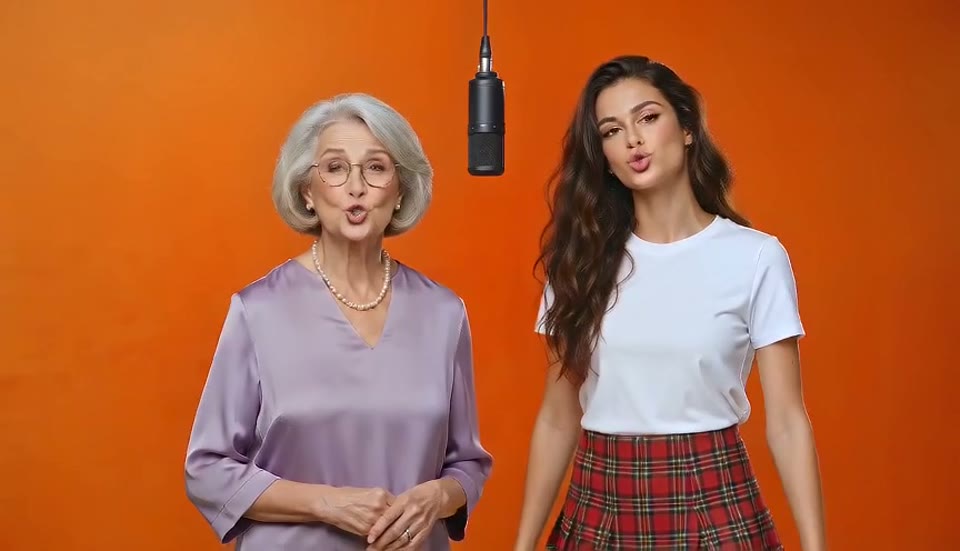
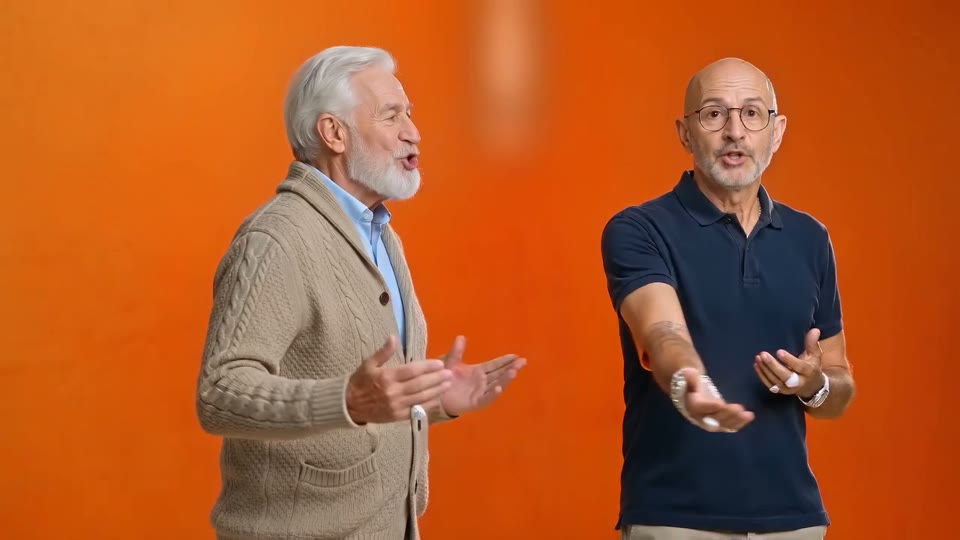
No app, no source clip, no editing software. The original performance is built into the generator, so there is nothing to find or trim, which is the step that stops most people when they try to make an AI Migos video with a motion-transfer tool. You need an account and two photos; your first 5-second preview is free, and full videos start at $14.99 a month for 5. Budget about five minutes end to end: a minute to pick photos, three to render, one to check.
- Two photosPhone photos are fine. The two do not need to be taken together or on the same day. Pets work too.
- PermissionOnly use photos of yourself and people who agreed to be in the video. No minors without a guardian, no public figures.
- Three minutesRendering takes two to four minutes. You can leave the page and pick the result up under My Tasks.
How to make an AI Migos video in 3 steps
Each step, with the detail that matters.
Step 1: pick two photos
One per person, front-facing, well lit, no sunglasses, as much of the body as you have. Crop group photos down to one person each. If you have a choice, use a photo where the person is standing: the performance is full body, and a standing photo gives the model the outfit and posture. Avoid heavy filters; the model copies what it sees, including the smoothing.
Step 2: upload left, then right, and pick a tier
The left slot is the performer who opens the verse. The right slot reacts first, then takes over. Put the louder friend on the left. Then choose a quality tier: Standard for a quick post, Pro if likeness matters most, Ultra for 1080p. The credit cost is on the button. Click Generate; the page shows progress and you can leave it.
Step 3: check, then post
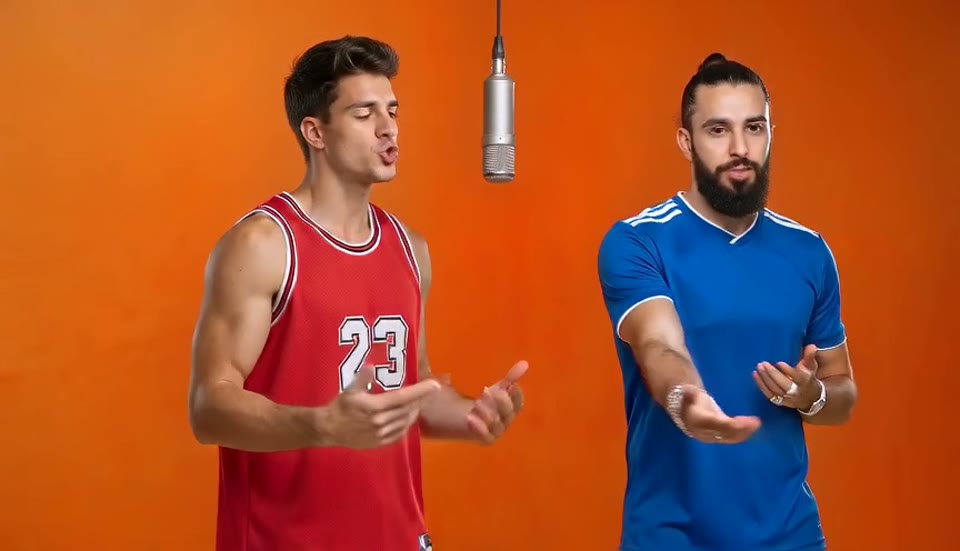
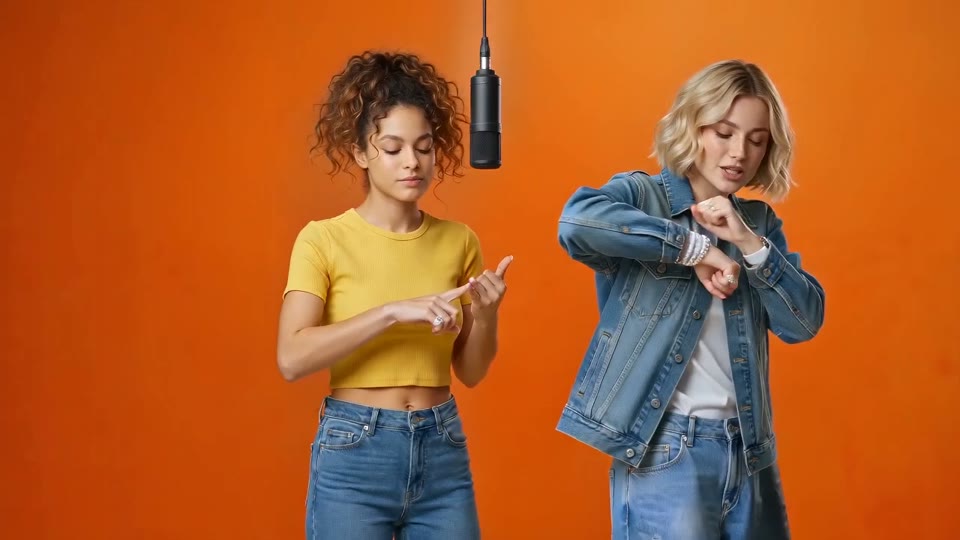
Watch the whole clip, not just the first second. Check both faces at the turn in the middle, check that nobody switched sides, and glance at the hands. If something is off, swap the photos or use a clearer one and run it again; failed renders are refunded and a second run is usually the fix. Then download and post.
Posting your AI Migos video
Where the video goes after the download.
TikTok
Upload the MP4, add the official Hotel Lobby sound from the library, mark it as AI-generated, and post. Vertical crop is optional; the 16:9 clip plays fine.
Instagram Reels and Shorts
Same file, same steps. Add the song from the audio library where available so the post is discoverable through the sound.
The group chat
Most AI Migos videos never get posted publicly. Send the MP4 straight to the chat; it is under 10 MB.
What to check before posting
Six things that separate a clean AI Migos video from one that gets roasted in the comments.
Faces hold the whole way
Scrub to the middle and the end, not just the opening frame. Drifting faces usually mean a shadowed or tilted source photo.
Nobody switched sides
The left person should stay left. If they swapped, hit Swap sides and regenerate; it usually lands on the next try.
Hands look right
Extra fingers happen on busy gestures. Regenerating fixes it more often than not.
Outfits match the photos
A head-to-knees photo keeps your real clothes. A tight headshot means the model invents them.
Audio is on
The download includes the performance audio. On TikTok, attach the official sound from the library as well for reach.
Label it as AI
TikTok, Instagram and YouTube all ask you to mark AI-generated content. It takes one tap and avoids takedowns.
More guides
If you are still deciding, these answer the usual questions.
Questions about how to make an AI Migos video
Do I need the original video?
No. The reference performance is part of the template. That is the main difference from motion-transfer tools, where finding and trimming the source clip is the hardest step.
Can I write a prompt or change the scene?
No. The scene, camera, moves and timing are fixed so the result looks like the trend. You only choose the two people and the quality tier.
Which quality tier should I use?
Standard for a quick post. Pro if likeness matters most. Ultra if you want 1080p for a big screen. The cost is shown on the button.
What if the render fails?
Failed or blocked renders are never charged; the credits return to your balance automatically. Try a clearer photo and run it again.
How long does it take to make an AI Migos video?
Two to four minutes to render, plus the minute it takes to pick two photos. You can leave the page and find the result under My Tasks.
Can I make one on my phone?
Yes. The generator runs in the browser on any phone; there is no app to install.